1. Introduction
You can install the translationstudio Monitoring Tools project component to any of your FirstSpirit projects (the component is not project specific). Once added, it only offers a configuration interface but does not install anything to the project itself (templates etc.).
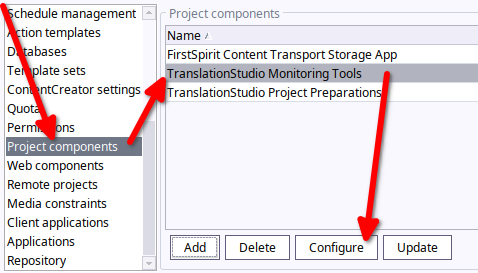
The monitoring tools component allows you to
-
Get a general overview of system resource usages,
-
Download translationstudio log files (current file only or all as ZIP file),
-
Download XML files (queued, imported, failed),
-
Get an overview about the current import queue,
-
Export translationstudio database content,
-
Monitor and update status information of translation management system taks,
-
Download and make changes to monitored files in translation table (this is particularly useful if you want to re-download an already translated document or remove "old" entries, etc.),
-
Obtain temporary import/export data to analyse potential issues during exports or imports
2. System resources
Whenever you open the monitoring tools, you will be greeted with a systematic overview of current resource consumption and version information:
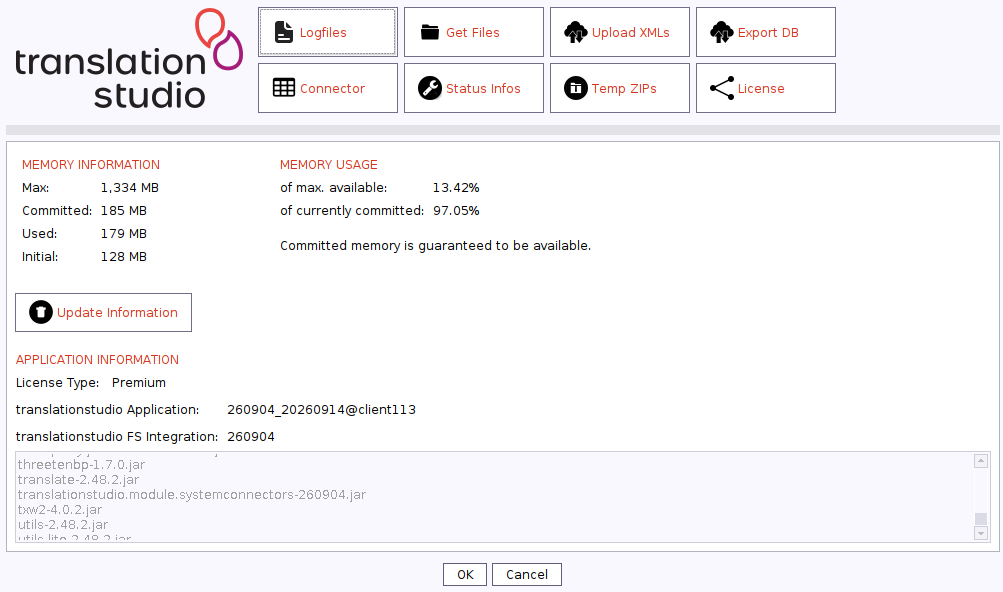
| This information is read only. |
3. Log files
You can either download the current log file or all logfiles as ZIP.
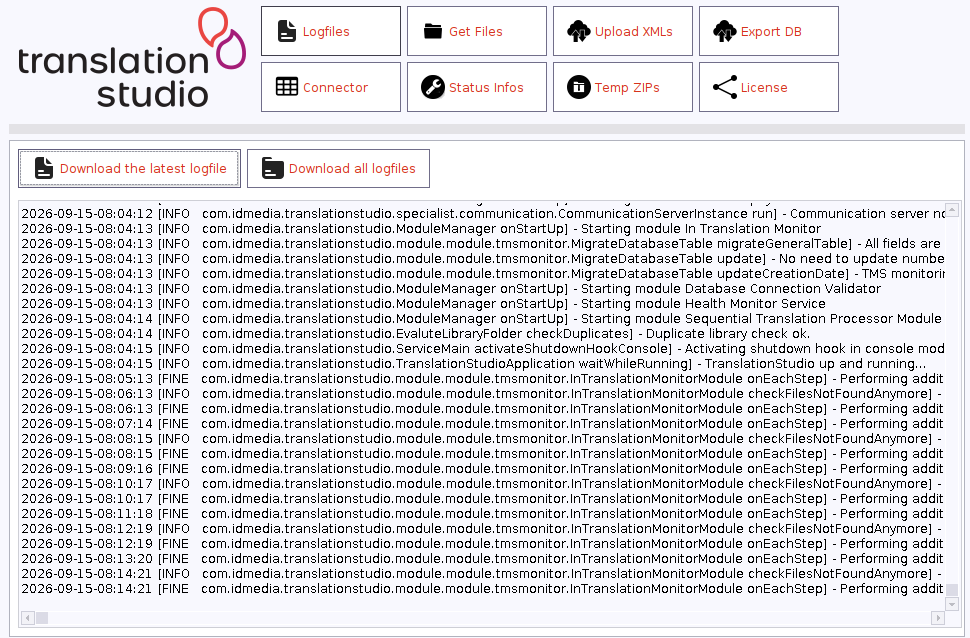
| The current log file will not be updated automatically once downloaded. You will need to update it manually. |
4. Download XMLs and import/export data
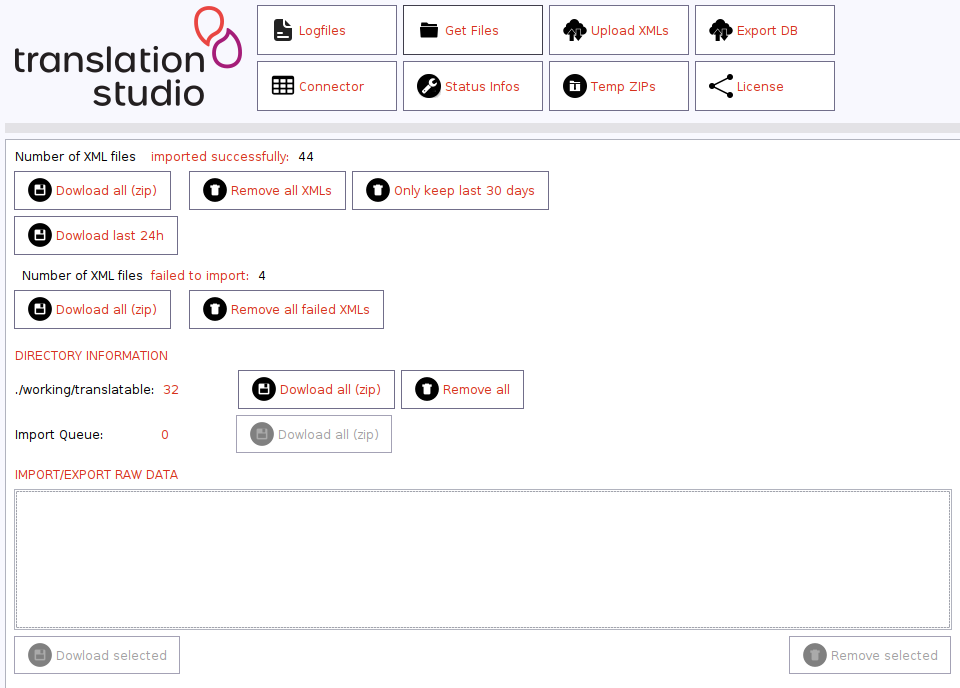
You can download translatable and translated files as well as temporary import/export data folders easily.
By default, temporary import/export data will be removed automatically. You need to update the management configuration to keep those folders.
|
5. Upload translated XMLs
Sometimes, you may change a translated XML document manually. To add it to the import queue, simply navigate to Upload XMLs, paste the XML content into the text field and upload it.
6. Download translationstudio database tables
You can download the content of database tables to verify its contents if need be.
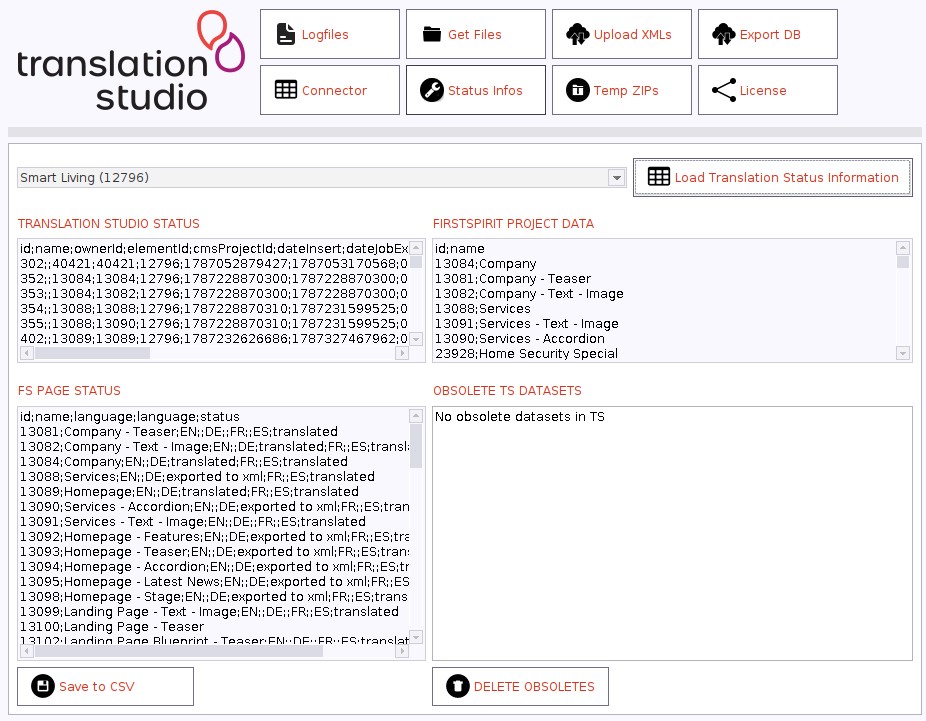
7. Manage monitored translations
translationstudio may send files to a translation management systen. When it does so, dedicated identifiers will be obtained and stored to monitor the translation status. Once the status is completed, translationstuido will download and import all translations automatically.
Each entry (e.g. file or translation project, depending on the target system) has one of the following status at a specific time
-
in translation
-
downloaded
-
not found
You can change the status of each such entry whenever you whish. Let’s say, a file has been marked as not found, because a translation has been archived instead of marked complete. Consequently, translationstudio will mark the file accordingly and not check it anymore. When the translation project is being updated to complete again, translationstudio will not respond to this change. Yet, you can change the status information from not found to in translation again to let translationstudio check the file again (and download it as a result).
Sometimes, you may wish to add an existing project that has been created manually for translationstudio to check. The information you will need depend on the target system and you need to make sure that all information is available as needed.