smartcat_config1= Smartcat Connector
1. Installing the Connector
To install the connector, please install the FSM via FirstSpirit ServerManager.
Thereafter, you can open translationstudio’s configuration panel, navigate to connectors, click on the add button and choose the connector from the given list. Its configuration panel will open automatically.
2. Requirements
The connector requires
-
an accessible API URL
-
valid credentials
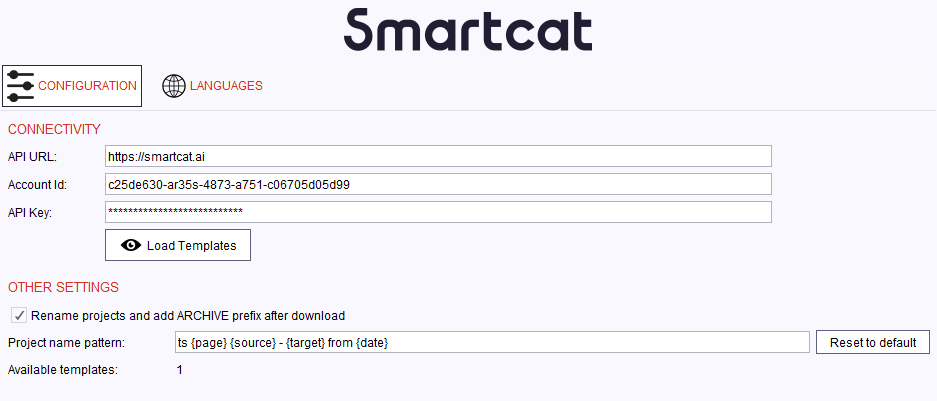
This can be achieved by navigating to Settings / API and creating a new key.
| Save the Account Id as well, because you will need it later. |
3. Configuration
4. How the Connector Works
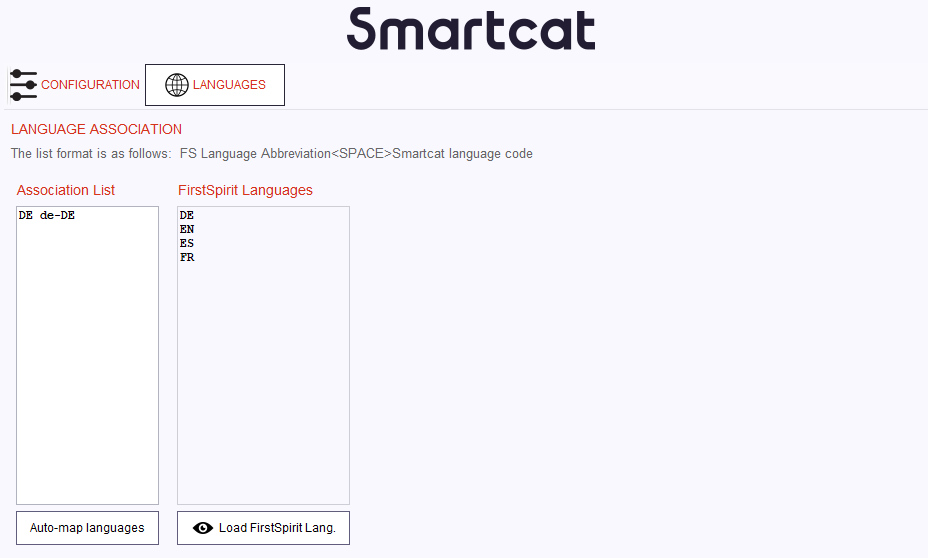
The connector allows you to submit files for translations, monitor the translation progress as well as download translated documents and importing them into FirstSpirit automatically.
Once a project has been completed, the connector downloads files automatically and, depending on your configuration above, adds an ACHIVE prefix to the project name to indicate that the files have been downloaded successfully.